

1.1.5 How to protect your personal account: two-factor authentication and IP-based access restriction
TheHost provides two security mechanisms for additional protection of your personal account: two-factor authentication (2FA) and IP-based access restrictions.
Two-factor authentication helps protect your account using one-time passwords generated by a dedicated application. IP-based restrictions, in turn, allow you to limit access to your personal account to specific IP addresses or networks.
Both features can be used independently or together.
Security Settings
To configure additional security measures, log in to your TheHost personal account and click Settings in the upper-right corner of the page. Alternatively, you can use the Control panel settings button on the home page of your personal account.

In the window that opens, select the Security tab. Here you can configure IP-based access restrictions and manage two-factor authentication.
IP Access Restrictions
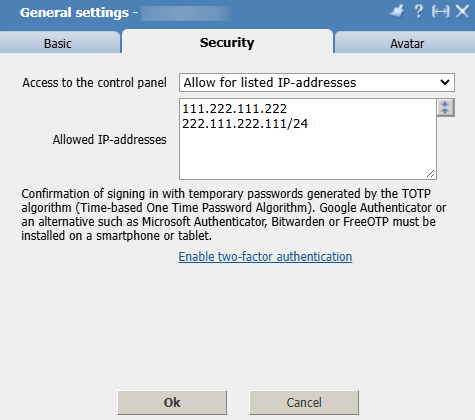
IP-based restrictions allow you to block access to your personal account from all IP addresses except those explicitly permitted. This feature is particularly useful if you access your personal account from a static IP address, such as an office or corporate network.
To enable this restriction, select Allow for listed IP-addresses from the Access to the control panel drop-down menu.
In the Allowed IP-addresses field below, enter the permitted addresses, one per line or separated by spaces. You can specify individual IP addresses as well as entire subnets using CIDR notation.
For example:
203.0.113.25— an individual IP address;203.0.113.0/24— a subnet with a /24 mask.
After making the necessary changes, click Ok to save your settings.
Warning: Before enabling this restriction, make sure your current public IP address is included in the list of allowed addresses. Otherwise, you risk losing access to your personal account. Also, keep in mind that if you use a dynamic IP address, it may change over time.
Setting Up Two-Factor Authentication (2FA)
Two-factor authentication provides an additional layer of account security by using temporary one-time passwords generated with the TOTP algorithm (Time-based One-Time Password).
To use this feature, you will need an authenticator application such as Google Authenticator, Microsoft Authenticator, Bitwarden, or FreeOTP.
To enable two-factor authentication:
- On the Security tab, click Enable two-factor authentication;
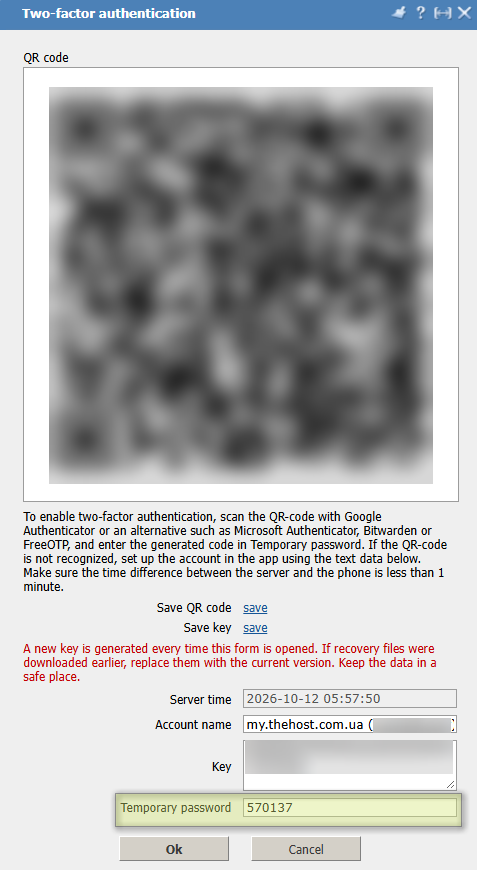
- In the window that opens, scan the provided QR code using your authenticator application. If scanning is unavailable, you can manually add the account using the Key displayed slightly below;
- Enter the generated six-digit code in the Temporary password field;
- Click Ok to complete the setup.
Once 2FA is enabled, you will need to enter a valid one-time password from your authenticator application to log in to your personal account and confirm protected operations.
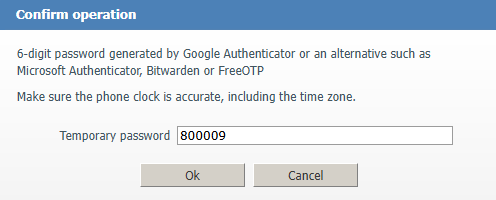
Temporary passwords are automatically refreshed at short intervals. For this feature to work correctly, your device’s clock must be synchronized with the correct time.
Additionally: During two-factor authentication setup, you have the option to save the QR code and secret key. We recommend storing this information in a secure location so that you can restore access to your code generator if your device is lost.
Please note that a new secret key is generated each time you reopen the setup form. Any previously saved recovery information must therefore be updated.
If necessary, you can disable two-factor authentication from the same Settings → Security tab. To disable it, you will need to enter a valid temporary password.
Note: If you completely lose access to your personal account due to incorrect security settings, you can still contact the Support Team using the email address or phone number associated with your account to request access recovery. However, the recovery procedure in such cases may differ from the standard process.
Using two-factor authentication together with IP-based access restrictions can significantly improve the security of your personal account and reduce the risk of unauthorized access and actions if your email account or phone number is compromised


